

File management in WordPress might not sound like the most thrilling topic, but getting a handle on it can genuinely make your website run smoother and save you a ton of time. Think of it as organizing your digital filing cabinet – when everything’s in its place, finding what you need and keeping things tidy becomes much easier. This means fewer errors, faster loading times, and a less stressful experience for you as the site owner.
It’s about more than just uploading images. We’re talking about how your themes, plugins, and even uploaded media are stored, how you can find them, and what you can do to keep that space from becoming a digital mess. By adopting a few smart practices, you can stop your WordPress site from getting bogged down and ensure it operates as efficiently as possible.
WordPress has a specific structure for storing your files. Knowing this structure is the first step to managing them effectively. It’s not just random folders; there’s a logic to it that helps keep things organized.
The Core WordPress Files
WordPress itself is made up of a series of core files and folders. These are essential for your site to function. You’ll typically find these in the root directory of your WordPress installation.
wp-admin Folder
This folder contains all the administrative files for your WordPress dashboard. You don’t usually need to interact directly with these files unless you’re a developer troubleshooting something specific.
wp-includes Folder
This is where the WordPress core code resides. It contains libraries, functions, and global variables that WordPress uses to operate. Again, for most users, this is best left untouched.
wp-content Folder
This is the most important folder for day-to-day file management. It’s where all your custom content, themes, plugins, and uploads are stored. It’s the area you’ll be interacting with most frequently.
The wp-content Folder: Your Digital Playground
This is where you have the most agency and where most of your organizational efforts should be focused. It’s structured to make it easy to add and manage your own site-specific content.
themes Folder
As the name suggests, this is where all your installed WordPress themes are located. Each theme has its own subfolder. When you activate a theme, WordPress looks within this folder to load its files.
plugins Folder
Similarly, this folder houses all your installed plugins. Each plugin gets its own dedicated subfolder. When you activate a plugin, WordPress accesses its files from here.
uploads Folder
This is the default location for all the media files – images, videos, documents – that you upload through the WordPress Media Library. It’s further organized by year and month, which can be helpful but also a source of disorganization if not managed.
The way WordPress organizes the uploads folder (e.g., wp-content/uploads/2023/11/your-image.jpg) is a default setting. While it helps prevent a massive, unmanageable folder of thousands of files, it can also mean you have many small, dated folders.
Streamlining Your Media Library
The Media Library is where most users encounter file management on a daily basis. Keeping it organized prevents clutter and makes it easier to find the images and files you need.
Effective Naming Conventions for Media Files
This is simple advice, but incredibly effective. Before you even upload an image, give it a descriptive name. Instead of IMG_1234.jpg, try red-running-shoes-product-shot.jpg.
Why File Naming Matters
Clear file names improve searchability within your WordPress Media Library. They also contribute to SEO by acting as descriptive text that search engines can understand.
Practical Naming Tips
- Use lowercase letters.
- Separate words with hyphens (
-), not underscores (_) or spaces. - Be concise but descriptive.
- Avoid special characters like
&,#,%.
Organizing Media into Folders (or Not)
WordPress, by default, organizes uploads into dated folders. While this has its merits, it can sometimes make manual browsing of your files challenging if you’re looking for something specific by content rather than by date.
The Default Folder Structure
wp-content/uploads/YYYY/MM/
Manual Folder Creation (with Caution)
Some plugins allow you to create custom folders within your Media Library. This can be a powerful way to categorize your media – think “product images,” “blog post graphics,” or “testimonials.”
Considerations Before Creating Custom Folders
- Plugin Dependency: If you rely on a plugin for folder management, ensure you keep it active. Deactivating it could break your organization.
- Searchability: While visual organization is nice, ensure your chosen method doesn’t hinder WordPress’s built-in search capabilities for media.
- Future-Proofing: Will your folder structure still make sense a year from now?
Bulk Actions for Media Management
WordPress offers some basic bulk actions for your media. While not as granular as dedicated plugins, they can still save time.
Deleting Unused Media
Over time, your Media Library can accumulate images and files you no longer use. These take up server space and can slow down backups or file transfers.
Identifying Unused Media
There’s no perfect built-in way to automatically identify truly unused media without potentially risking breaking links. However, you can manually review the library for images that are clearly duplicates or from old, no-longer-used pages or posts. Plugins exist that can help analyze this more thoroughly.
Bulk Deletion Process
Select multiple images in the Media Library using the checkboxes and then use the “Bulk actions” dropdown to choose “Delete permanently.” Always double-check before you commit.
Optimizing Your Plugin and Theme Files
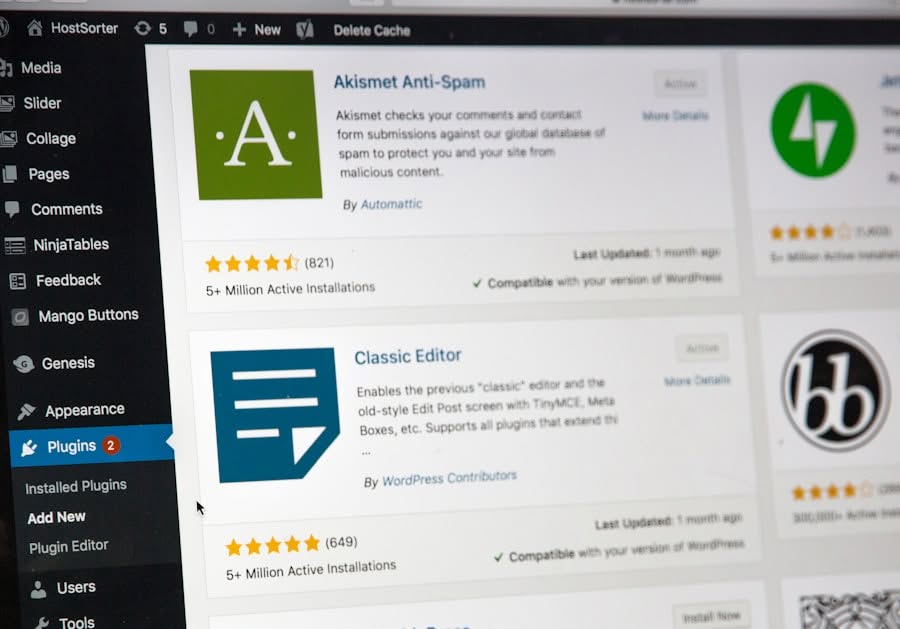
While you shouldn’t be directly editing core files often, managing your plugins and themes efficiently is crucial for performance and security.
Keeping Plugins and Themes Updated
This is a non-negotiable aspect of WordPress file management. Outdated software is a security vulnerability and often a performance bottleneck.
Security Benefits of Updates
Developers release updates to patch security holes. Running outdated versions means your site is exposed to known exploits.
Performance Improvements
Updates often include code optimizations that can make your plugins and themes run faster.
Best Practices for Updates
- Regularly Check: Make it a habit to check for updates weekly.
- Staging Environment: For significant updates, consider using a staging site to test them before applying to your live site. This prevents unexpected issues from affecting your visitors.
- Delete Unused Plugins/Themes: If you’re not using a plugin or theme, deactivate and delete it entirely. Unused files still occupy storage and can potentially cause conflicts or security risks if vulnerabilities are found in them.
Deleting Unused Plugins and Themes
This might seem obvious, but many people deactivate plugins and themes without actually deleting them. This is a missed opportunity for efficiency.
Why Deleting Matters
- Disk Space: Unused files still take up valuable server space.
- Performance: Even deactivated plugins can sometimes load scripts or stylesheet references, impacting your site’s speed.
- Security: As mentioned, plugins and themes can have vulnerabilities. If you’re not using it, there’s no need to keep it on your server.
How to Delete
Navigate to the “Plugins” or “Appearance > Themes” section in your WordPress dashboard. Deactivate the item first, then select the “Delete” option.
Organizing Plugin Settings
Plugins themselves often add their own files and settings. Understanding how these are managed can help.
Plugin Settings Pages
Most plugins create their own dedicated pages or sections within the WordPress dashboard for configuration. Familiarize yourself with these.
Plugin Data Storage
Some plugins store their data in the WordPress database, while others might create their own folders within wp-content/plugins/your-plugin-name/ to store specific assets (like custom CSS, JS, or template files).
When to Reset or Reinstall
If a plugin is misbehaving or you want to start its configuration from scratch, the best approach is usually to deactivate, delete, and then reinstall the plugin. This often cleans up any lingering problematic files or database entries associated with it.
Controlling Your WordPress File Structure
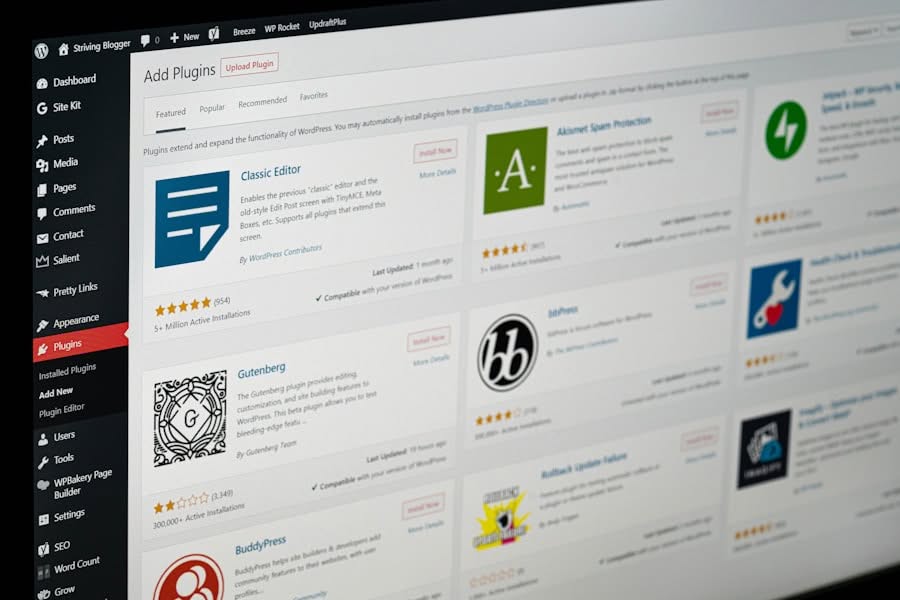
Beyond the defaults, you have some control over how your WordPress files are structured. This is particularly relevant if you’re adding custom code or working with advanced features.
Understanding the Root Directory
The root directory is the main folder where your WordPress installation lives. This is where wp-config.php, .htaccess, and the wp-admin, wp-includes, and wp-content folders are located.
wp-config.php
This file contains your site’s database connection details and other core settings. It’s very sensitive and should not be publicly accessible.
.htaccess File
This file controls server configuration for Apache servers, including permalink structure, redirects, and security rules. Incorrectly editing this file can break your site.
Customizing the Uploads Directory (Advanced)
For specific needs, you might want to change where WordPress stores uploads. This is an advanced customization.
Reasons for Customizing
- Disk Space Management: If your primary hosting drive fills up, you might want to direct uploads to a separate partition or drive.
- Security: Keeping uploads in a non-standard directory can be a minor security precaution, though not a primary defense.
How to Customize
This is typically done by defining a new path and URL for uploads in your wp-config.php file. For example:
“`php
define( ‘UPLOADS’, ‘wp-content/my-custom-files’ );
“`
Important Considerations
- Absolute Paths: You’ll need to use absolute server paths, not relative ones.
- Permissions: Ensure the new directory has the correct file permissions set for WordPress to write to it.
- Plugin Compatibility: Some plugins might not correctly handle custom upload directories. Always test thoroughly.
Leveraging Plugins for Enhanced File Management
| File Management Metric | Value |
|---|---|
| Total Files Uploaded | 1500 |
| File Types Supported | jpg, png, gif, pdf, docx |
| Storage Used | 500MB |
| Files Organized in Folders | Yes |
While WordPress has built-in file management capabilities, plugins can significantly extend and automate these processes, making your life easier.
File Manager Plugins
These plugins provide a visual interface within your WordPress dashboard to browse, upload, edit, delete, and move files and folders directly from your browser.
Benefits of File Manager Plugins
- Convenience: Access and manage files without needing FTP or cPanel.
- Bulk Operations: Many offer robust bulk actions for renaming, copying, and moving files.
- Search and Filter: Advanced search capabilities help locate files quickly.
Popular Options
- WP File Manager: Offers a drag-and-drop interface, code editor, and user role management for file access.
- Advanced File Manager: Similar functionality with extensive features for managing permissions, creating archives, and more.
Media Library Organizer Plugins
These plugins focus specifically on improving the organization and management of your media files.
Features to Look For
- Custom Folders/Categories: Allows you to create a folder structure for your images and other media.
- Bulk Tagging: Add relevant keywords to multiple media items at once.
- Image Optimization Integration: Some plugins can integrate with image optimization services to compress images on upload.
Examples
- Real Media Library: A highly rated plugin for creating an unlimited number of folder structures and categories.
- Embed Plus Plugin (for YouTube/Vimeo): While not strictly a file manager, it helps organize and embed media efficiently, reducing the need to store large video files directly on your server.
Backup and Cloud Storage Integration
Efficient file management also involves ensuring you have secure backups and potentially offloading some storage.
Backup Plugins
Regular backups are critical. They ensure you can restore your site if something goes wrong with file management or any other aspect of your site.
Cloud Storage Sync
Some plugins allow you to sync your WordPress uploads folder with cloud storage services like Google Drive, Dropbox, or Amazon S3.
Advantages of Cloud Sync
- Offsite Backups: Your media is stored externally, protecting it from server failures.
- Reduced Server Load: Large media files are served directly from the cloud, freeing up your web server’s resources.
- Scalability: Easily manage growing media libraries without hitting hosting limits.
Popular Backup Solutions
- UpdraftPlus: A very popular plugin for scheduled backups to various cloud storage locations.
- BackupBuddy: A premium option with comprehensive features for backups and migrations.
Maintaining Digital Hygiene for Peak Performance
Just like any living space, your WordPress site’s file system benefits from regular cleaning and maintenance. This isn’t a one-time task; it’s an ongoing process.
Regular Audits of Your File System
Set aside time periodically to review your site’s files. This helps catch issues before they become major problems.
What to Look For
- Duplicate Files: Particularly in the
uploadsfolder. - Large Files: Identify any unusually large files that might be impacting loading times or storage.
- Unused Assets: Check for leftover files from deleted themes or plugins.
- Corrupted Files: Occasionally, files can become corrupted during transfer or due to server issues.
Tools for Auditing
- FTP Client: Allows you to browse and analyze your file structure directly.
- Server Disk Usage Reports: Your hosting provider often offers tools to see which folders are consuming the most space.
- Plugin-Specific Tools: Some file manager plugins offer auditing features.
Cleaning Up Temporary and Orphaned Files
WordPress, and the plugins/themes it uses, can sometimes leave behind temporary files or orphaned data that are no longer needed.
Transient Data
WordPress uses “transients” to cache data. While helpful for performance, sometimes these can accumulate or become stale. Plugins exist to clean these up.
Orphaned Plugin/Theme Data
When you delete a plugin or theme, sometimes database entries or leftover files in non-standard locations might remain.
Automated Cleanup Tools
Many performance optimization plugins include features to clear transients, optimize the database, and remove other unnecessary data.
Optimizing Image Files for Speed
Images are often the largest contributors to a website’s file size. Efficiently managing them is key to performance.
Image Compression
Always compress images before uploading them, or use a plugin that does this automatically. This reduces file size without significant loss of quality.
Correct File Formats
Use JPEG for photographs, PNG for graphics with transparency, and consider WebP for modern browsers, which offers superior compression.
Lazy Loading
Ensure your site uses native or plugin-based lazy loading for images. This means images only load when they become visible in the user’s browser viewport, speeding up initial page load.
By taking a proactive approach to file management, you’re not just tidying up; you’re actively contributing to a faster, more secure, and more user-friendly WordPress website. It’s an investment that pays off in the long run.