

So, you’re looking to build a learning platform with WordPress in 2024? Great choice! The short answer is yes, absolutely, you can create a robust and effective online learning platform using WordPress. It’s more accessible and flexible than ever before, especially with the right tools and a clear plan. This article will walk you through the essential steps and considerations, making sure you’re set up for success without getting bogged down in technical jargon.
Why WordPress for Your Learning Platform?
Before diving into the how-to, let’s quickly touch on why WordPress remains a fantastic option for learning platforms. You might be thinking about dedicated LMS (Learning Management System) solutions, and while they have their place, WordPress offers a unique blend of control, flexibility, and a massive ecosystem of plugins and themes.
The Power of Open Source
WordPress, being open-source, means you have ultimate control over your platform. You’re not locked into a proprietary system’s limitations or pricing structures. This translates to greater flexibility in design, features, and even data ownership. You can customize nearly every aspect to fit your specific learning goals and brand identity.
Cost-Effectiveness
While there are premium plugins and themes you’ll likely invest in, the core WordPress software is free. Compared to some dedicated LMS platforms that charge per user or per course, WordPress often presents a more cost-effective solution, especially as you scale. You’re paying for hosting, domain, and specific tools, rather than a recurring platform fee that might eat into your profits.
Vast Ecosystem of Plugins and Themes
This is arguably WordPress’s biggest strength. There’s a plugin for almost anything you can imagine, from e-commerce to advanced quizzes. For learning platforms, this means you can piece together exactly the functionality you need without custom coding everything from scratch. Similarly, themes provide a massive head start on design, letting you create a professional-looking site without being a graphic designer.
Choosing the Right LMS Plugin
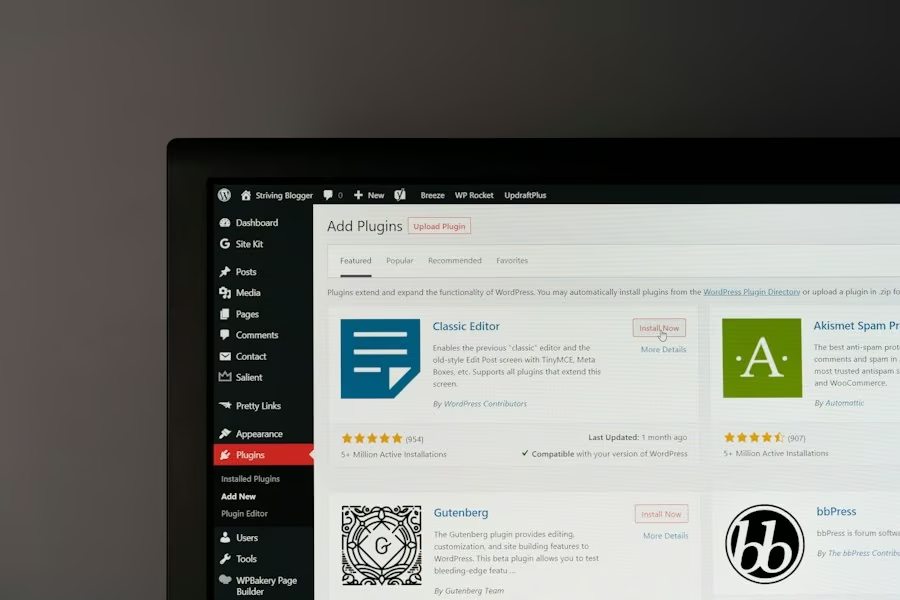
The heart of your WordPress learning platform will be a robust LMS plugin. This is where the magic happens, transforming your standard WordPress site into a functional learning environment. There are several excellent options available, and the “best” one really depends on your specific needs, budget, and desired features.
Popular LMS Plugin Options
Let’s look at a few of the top contenders that are well-established and regularly updated.
LearnDash
LearnDash is often considered the gold standard for WordPress LMS plugins. It’s incredibly powerful and feature-rich, suitable for individual instructors, educational institutions, and corporate training. It offers advanced course builders, quizzing, assignments, certificates, drip-feed content, and robust reporting. LearnDash integrates seamlessly with popular page builders like Elementor and Divi, and also with e-commerce solutions like WooCommerce for selling your courses. While it’s a premium plugin, its extensive feature set often justifies the cost for serious educators.
Sensei LMS
Developed by Automattic (the company behind WordPress.com and WooCommerce), Sensei LMS is another strong contender. It’s known for its tight integration with WooCommerce, making it a natural choice if you’re already familiar with or planning to use WooCommerce for selling other products. Sensei offers core LMS functionalities like course creation, quizzes, and grading. It’s generally seen as a slightly simpler and more streamlined option compared to LearnDash, which can be a pro or con depending on your needs.
LearnPress
LearnPress stands out as a free core LMS plugin with premium add-ons. This makes it an attractive option for those on a tighter budget who want to start small and scale up by purchasing specific features as needed. It provides comprehensive course management, lessons, quizzes, and even supports multiple instructors. The free version is quite capable, and the paid add-ons cover areas like certificates, assignments, and content drip.
Tutor LMS
Tutor LMS is a rapidly growing and highly-rated LMS plugin, available in both free and premium versions. It boasts a beautiful user interface and an intuitive course builder. Tutor LMS focuses heavily on the instructor and student experience, offering features like a front-end course builder for instructors, comprehensive analytics, and a powerful quiz builder. Its modern design and continuous development make it a strong contender for new platforms.
Key Features to Look For
When evaluating LMS plugins, keep these crucial features in mind:
Course Builder
An intuitive and flexible course builder is paramount. You want to be able to easily create lessons, modules, topics, and sequence them logically. Drag-and-drop interfaces are a huge plus here. Look for options to embed various media types (video, audio, documents) within your lessons.
Quizzing and Assessments
Effective learning requires assessment. Your chosen LMS should offer a variety of quiz types (multiple choice, true/false, open-ended, fill-in-the-blank), quiz settings (time limits, retakes, question banks), and assignment submission options. Gradebook functionality and automated grading are also critical for efficiency.
Content Drip-Feeding
Drip-feeding content allows you to release lessons or modules over time, rather than all at once. This can be great for pacing, engagement, and even for recurring subscriptions where new content is released regularly.
Certificates and Badges
Recognizing achievement is a powerful motivator. Look for an LMS that allows you to issue customizable certificates upon course completion and potentially badges for reaching milestones.
E-commerce Integration
Unless your courses are entirely free, you’ll need a way to sell them. Seamless integration with WooCommerce is often the best solution, allowing you to manage course sales alongside other potential products on your site.
User Management and Reporting
You’ll need to easily manage students, track their progress, and understand how they’re engaging with your content. Robust reporting features provide valuable insights into course effectiveness and student performance.
Choosing a Theme and Design
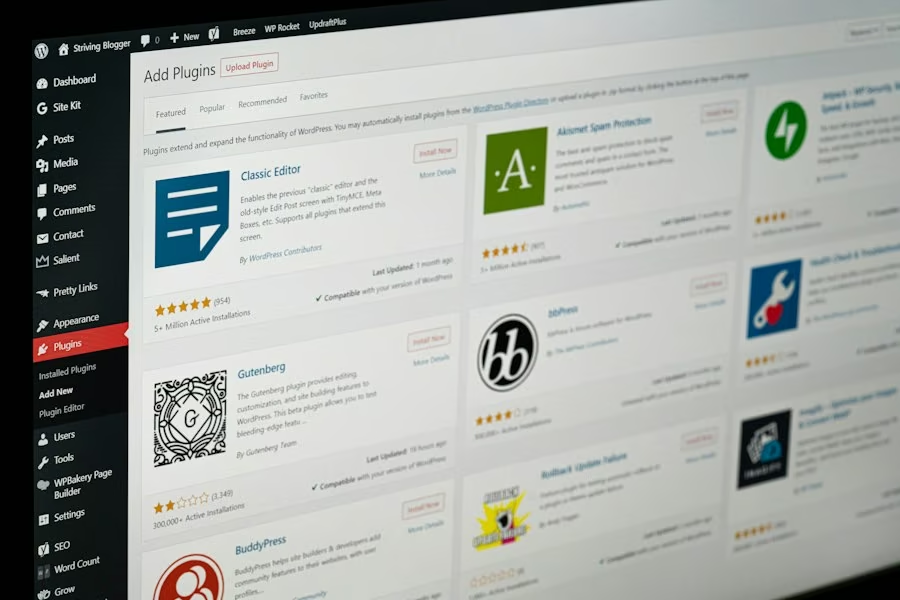
While the LMS plugin handles the functionality, your WordPress theme dictates the look and feel of your learning platform. A well-designed theme enhances user experience, making your platform inviting and easy to navigate.
LMS-Specific Themes
Many theme developers now offer themes specifically designed to integrate seamlessly with popular LMS plugins like LearnDash or Sensei. These themes often include dedicated templates for course pages, lesson layouts, and student dashboards, saving you a lot of customization work. Examples include Astra, Kadence, GeneratePress (with their pro versions and starter templates), and specific themes like BuddyBoss for social learning.
General Purpose Themes
Alternatively, you can use a high-quality, general-purpose WordPress theme and customize it. Themes like Astra, Kadence, and GeneratePress are excellent choices as they are lightweight, fast, and highly customizable. They integrate well with page builders, allowing you to design unique layouts for your course pages and other content.
Key Design Considerations
When choosing and customizing your theme, keep these in mind:
Responsiveness
Your learning platform MUST be responsive, meaning it adapts beautifully to all screen sizes – desktops, tablets, and mobile phones. A significant portion of your users will likely access content on mobile devices.
User Experience (UX)
Prioritize a clean, intuitive layout. Navigation should be straightforward, course content easy to find, and progression clear. Avoid clutter and overly complex designs that can distract learners.
Branding
Your platform should reflect your brand. Use your colors, fonts, and logo consistently throughout the site. A cohesive brand identity builds trust and professionalism.
Page Builder Compatibility
If you plan to heavily customize layouts, ensure your theme works well with popular page builders like Elementor, Beaver Builder, or Divi. This gives you drag-and-drop control over your page designs.
Speed and Performance
A slow website is a frustrating website. Choose a theme that is well-coded and optimized for speed. Performance directly impacts user retention and SEO.
Essential Plugins Beyond the LMS
While the LMS plugin is central, several other WordPress plugins will significantly enhance your learning platform’s functionality and user experience. Think of these as the supporting cast that makes your platform shine.
E-commerce: WooCommerce
If you’re selling courses, WooCommerce is almost a non-negotiable. It’s the most popular e-commerce solution for WordPress, offering robust features for product management, payment gateways, and order processing. Most good LMS plugins integrate seamlessly with WooCommerce to handle course sales.
Payment Gateway Add-ons
Once you have WooCommerce, you’ll need to connect it to payment gateways. These allow you to accept payments via credit cards, PayPal, Stripe, etc. WooCommerce has extensions for virtually every popular payment gateway, so choose the ones relevant to your audience.
Page Builder: Elementor, Beaver Builder, or Divi
Even if your theme offers good customization, a page builder provides unparalleled design flexibility. These drag-and-drop tools allow you to create stunning layouts for your landing pages, sales pages, and even custom course overview pages without touching a line of code. They are invaluable for non-designers or those who want complete creative control.
SEO Plugin: Yoast SEO or Rank Math
To help people find your courses, you need to optimize your site for search engines. SEO plugins like Yoast SEO or Rank Math provide tools to optimize titles, descriptions, content, and technically configure your site for better search rankings.
Caching and Performance: WP Rocket, LiteSpeed Cache, or W3 Total Cache
Website speed is crucial. Caching plugins store static versions of your pages, serving them faster to returning visitors. They also offer other optimization features like minifying CSS/JavaScript, lazy loading images, and database optimization. A faster site means a better user experience and better SEO.
Security: Wordfence Security or Sucuri Security
Protecting your learning platform from cyber threats is paramount. Security plugins help block malicious login attempts, scan for malware, implement firewalls, and provide general hardening of your WordPress installation. Never skimp on security.
Backup Solution: UpdraftPlus or Duplicator
Accidents happen. Data loss can be catastrophic. A reliable backup plugin allows you to easily back up your entire website (files and database) and restore it if anything goes wrong. Set up automated daily or weekly backups.
Email Marketing Integration: Mailchimp for WordPress, FluentCRM
Connecting your platform to an email marketing service is vital for communication. You’ll want to send welcome emails, course updates, promotional offers, and engage with your students. Plugins for Mailchimp, ActiveCampaign, ConvertKit, or even self-hosted solutions like FluentCRM make this integration straightforward.
Forums and Community: bbPress or BuddyPress
Forums and community features can significantly enhance the learning experience by fostering interaction among students. bbPress adds simple forum functionality, while BuddyPress creates a full-fledged social network within your WordPress site, complete with profiles, activity streams, and groups.
Setting Up Your Platform
| Metric | Value | Description |
|---|---|---|
| Active Installations | 100,000+ | Number of active WordPress sites using learning platform plugins |
| Average User Rating | 4.5 / 5 | Average rating of popular learning platform plugins on WordPress.org |
| Supported Course Types | Video, Quiz, Assignments, Certificates | Types of course content supported by leading WordPress learning platforms |
| Popular Plugins | LifterLMS, LearnDash, Tutor LMS, Sensei | Top WordPress plugins used for creating learning platforms |
| Monthly Downloads | 50,000+ | Average monthly downloads of top learning platform plugins |
| Integration Options | WooCommerce, BuddyPress, Zoom, Payment Gateways | Common integrations available for WordPress learning platforms |
| Mobile Responsiveness | Yes | Most WordPress learning platforms are optimized for mobile devices |
With your core tools chosen, it’s time to get down to the actual setup. This involves several practical steps, from hosting to content creation.
Choosing Reliable Hosting
Your hosting provider is the foundation of your website. Don’t cheap out here, especially for a learning platform that will handle user accounts, course data, and potentially a lot of traffic.
Types of Hosting
- Shared Hosting: Cheapest, but often unreliable and slow for growing sites. Not recommended for a serious learning platform.
- Managed WordPress Hosting: Recommended. These providers (e.g., Kinsta, WP Engine, SiteGround, Cloudways) optimize their servers specifically for WordPress, offering better speed, security, and support. They often include caching, CDN integration, and backups.
- VPS (Virtual Private Server) / Cloud Hosting: Offers more resources and control but requires more technical expertise to manage. Good for very large platforms.
Choose a host that offers good performance, solid uptime, excellent support, and security features.
Installing WordPress
Most hosting providers offer a one-click WordPress installation tool in their control panel (cPanel or similar). Follow their instructions, or manually install it if you prefer. This process is generally straightforward.
Installing Your Theme and Plugins
Once WordPress is installed:
- Install your theme: Go to Appearance > Themes > Add New. Upload your theme file or search for it in the WordPress repository.
- Install your LMS plugin: Go to Plugins > Add New. Upload the plugin file or search for it. Activate it.
- Install other essential plugins: Repeat the process for WooCommerce, your SEO plugin, security plugin, etc.
Always activate plugins after installation.
Configuring Your LMS Plugin
This is where you’ll spend significant time. Follow your chosen LMS plugin’s setup wizard or documentation. Key configuration steps include:
- General Settings: Define course archives, lesson pages, currency (if selling).
- Quizzes/Assignments: Set default quiz options, grading methods.
- Integrations: Connect with WooCommerce, email marketing services.
- User Roles: Understand the different roles (student, instructor, admin) and their permissions.
Creating Your Courses and Content
Now for the fun part – building your actual courses!
Structuring Your Courses
Plan your course structure logically. Break down topics into modules, lessons, and potentially sub-lessons. A clear progression makes learning easier. Use an outline tool or even pen and paper first.
Developing Engaging Content
- Variety is Key: Don’t rely solely on text. Incorporate videos (tutorials, demonstrations), audio (podcasts, lectures), images, infographics, and downloadable resources (PDFs, templates).
- Interactivity: Use quizzes, assignments, polls, and discussions to keep learners engaged.
- Conciseness: Get to the point. Long, rambling lessons can lead to disengagement.
- Accessibility: Ensure your content is accessible to all learners. Use proper headings, alt text for images, and consider captions for videos.
Setting Up Quizzes and Assignments
Design your assessments to reinforce learning and gauge understanding. Vary question types and provide clear instructions. If using assignments, clarify submission methods and grading criteria.
Pricing and Product Setup (with WooCommerce)
If you’re selling courses:
- Create products in WooCommerce: For each course, create a product. Link it to your LMS course.
- Set pricing: Decide on one-time payments, subscriptions, or membership options.
- Configure payment gateways: Make sure your chosen payment methods are set up and tested.
Marketing and Launching Your Platform
Building a great platform is only half the battle; people need to know it exists! Marketing is crucial for attracting your first students.
Pre-Launch Buzz
Don’t wait until launch day to start marketing.
Coming Soon Page
Set up a simple “coming soon” page with an email signup form. This allows you to collect interested leads before your full launch. Offer an early bird discount or exclusive content to encourage sign-ups.
Social Media Engagement
Start talking about your upcoming platform on social media channels where your target audience hangs out. Share behind-the-scenes glimpses, course teasers, and engage with potential students.
Content Marketing
Start creating valuable content (blog posts, short videos) related to your course topics. This establishes you as an authority and drives organic traffic to your site.
Launch Strategies
When you’re ready to go live:
Email List Announcement
Your email list is your most valuable asset. Send out a compelling launch announcement to everyone who signed up on your coming soon page.
Social Media Campaign
Launch with a coordinated campaign across your social media channels. Consider paid ads on platforms like Facebook, Instagram, or LinkedIn to reach a wider audience.
Partnerships and Affiliates
Collaborate with complementary businesses or influencers in your niche. They can promote your courses to their audience, often in exchange for a commission.
Introductory Offers
Consider offering launch discounts, bundled courses, or bonuses to incentivize early enrollment.
Post-Launch Maintenance and Growth
Your work doesn’t stop after launch. Continuous effort is key to growth.
Gather Feedback and Iterate
Actively solicit feedback from your first students. Use surveys, polls, and direct communication to understand what’s working and what can be improved. Be prepared to update your courses based on this feedback.
Ongoing Content Creation
Keep your platform fresh by regularly adding new content, updating existing lessons, or creating new courses. This keeps students engaged and gives them a reason to return.
SEO and Analytics
Regularly monitor your website analytics (Google Analytics, Google Search Console) to understand how people are finding and interacting with your platform. Continuously optimize your site for SEO to attract more organic traffic.
Community Building
Foster a sense of community among your students. Encourage discussions, create private groups, or host live Q&A sessions. A strong community can be a powerful driver of engagement and referrals.
Customer Support
Provide excellent customer support. Be responsive to student inquiries and resolve issues promptly. Positive experiences lead to repeat customers and word-of-mouth referrals.
Building a learning platform with WordPress in 2024 is a very achievable goal. By carefully selecting your LMS plugin, designing a user-friendly interface, adding essential supporting tools, and implementing a solid marketing strategy, you can create a successful and impactful online learning environment. Good luck!