

You’re probably wondering if ManageWP Dashboard is actually worth the hassle of setting up or if it’s just another piece of software that promises to simplify things but ends up adding more complexity. The short answer is yes, it can be a real game-changer for managing multiple WordPress websites, especially if you’re dealing with more than a couple. It brings a lot of essential tasks under one roof, saving you significant time and reducing the mental juggling act that comes with keeping various sites secure, updated, and performing well.
Understanding the Core Problem ManageWP Solves
Let’s face it, managing multiple WordPress websites can feel like a constant battle. You’ve got updates to run – core, themes, plugins. Then there are security checks, backups, and performance monitoring. If each site is a separate login and a separate process, it quickly becomes overwhelming and time-consuming. You might find yourself putting off updates, which is a recipe for security vulnerabilities, or struggling to keep track of which site needs what. This is where a centralized dashboard like ManageWP steps in, aiming to consolidate these essential management tasks into a single, user-friendly interface.
The Pain Points of Manual Management
Think about it: logging into each website individually, navigating to the updates screen, clicking “update,” and repeating this for every single theme and plugin across every site. It’s tedious. Security scans require separate plugins or services, backups need to be scheduled and monitored, and performance checks are often forgotten because they aren’t as immediately pressing as an update notification. This manual approach not only eats up valuable hours but also increases the chances of human error. A missed update on one site could leave it exposed, and a forgotten backup might be a disaster waiting to happen.
How a Dashboard Simplifies the Workflow
A dashboard like ManageWP acts as a central command center. Instead of hopping between browser tabs, you can see all your websites listed in one place. From this overview, you can initiate updates for all sites simultaneously, perform security scans across the board, and schedule regular backups without ever needing to log into the individual WordPress admin areas. It’s about efficiency and reducing the cognitive load of managing a growing number of digital assets.
Key Features That Make ManageWP Stand Out
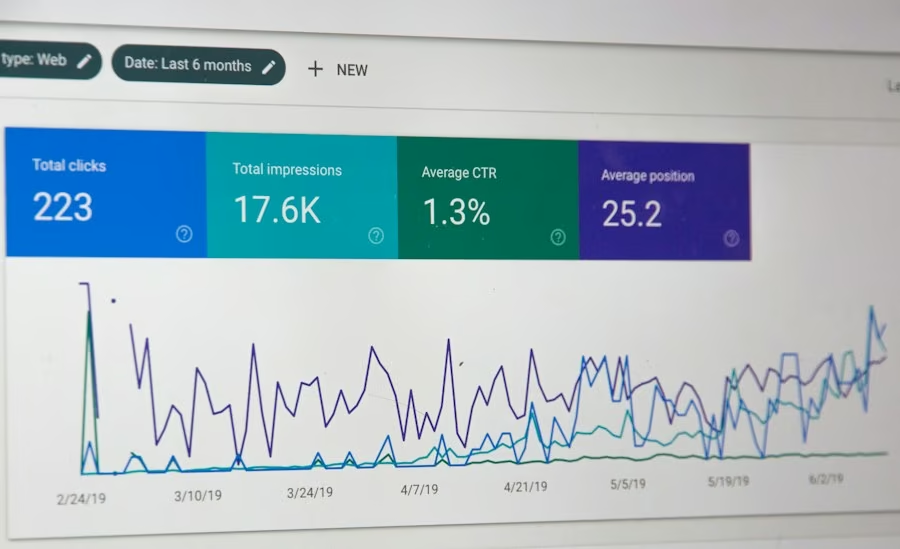
ManageWP isn’t just a pretty interface; it’s packed with practical tools designed to address the core needs of website managers. The real value lies in how these features integrate and simplify everyday tasks.
Updates at Scale
This is arguably the most compelling feature for anyone managing multiple sites. With ManageWP, you can see all available updates – WordPress core, themes, and plugins – for all your connected websites in one place. You have the option to update them individually or, more powerfully, select multiple sites and update them in bulk. This saves an enormous amount of time and ensures your sites are consistently running the latest versions, which is crucial for security and performance.
The “Update All” Convenience
Imagine the relief of seeing a single button that can update all your plugins or themes across all your sites. While it’s always wise to do a quick check beforehand, the ability to push out mass updates is a huge time-saver. This feature alone can reclaim hours each week for busy website owners or developers.
Staging & Rollback Options
For those who opt for ManageWP’s premium features, the ability to create staging environments and easily roll back updates is invaluable. Before pushing major updates live, you can test them on a staging copy of your site. If something goes wrong, rolling back to a previous version is straightforward, minimizing downtime and potential damage.
Robust Backup and Restore Capabilities
Backups are non-negotiable, and ManageWP makes them incredibly easy to manage. You can schedule automated daily or weekly backups for all your sites. These backups are stored off-site, so even if your server crashes, your data is safe. The restore process is also streamlined, allowing you to quickly bring a site back online if something goes wrong.
Automated Off-Site Backups
This is a critical security measure. ManageWP allows you to set up automated backups that are stored on their servers, separate from your website’s hosting. This means if your hosting provider experiences an issue, your backups are still accessible. You can choose the frequency of these backups, ensuring you always have a recent copy of your site.
One-Click Restore Functionality
When the worst happens and you need to restore a site, the last thing you want is a complicated process. ManageWP’s one-click restore feature simplifies this, allowing you to quickly bring your website back to its last known good state from a backup.
Security and Performance Monitoring
Keeping your websites secure and performing optimally is a constant concern. ManageWP offers tools to help you stay on top of this.
Security Scans
ManageWP can perform regular security scans on your connected websites, looking for malware, vulnerabilities, and other security threats. You’ll be alerted to any issues, allowing you to take prompt action. This proactive approach is far better than reacting to a security breach.
Uptime Monitoring
Downtime means lost visitors and potential revenue. ManageWP’s uptime monitoring will notify you if one of your websites goes offline. This allows you to quickly investigate and resolve the issue before it impacts your users significantly.
Performance Checks
While not as in-depth as dedicated performance tools, ManageWP can offer insights into site speed and other performance metrics. This can help identify sites that might be slowing down and require attention.
Setting Up and Connecting Your Websites
Getting started with ManageWP is generally a straightforward process. The dashboard itself is designed to be intuitive, and connecting your websites involves a small, one-time installation on each site you want to manage.
The Initial Dashboard Setup
When you first sign up for ManageWP, you’ll create an account and be presented with your main dashboard. This is where all your connected websites will be listed. The interface is clean and organized, making it easy to navigate through the different features.
Installing the ManageWP Worker Plugin
To connect a website to your ManageWP dashboard, you’ll need to install a small plugin called the “ManageWP Worker.” This plugin acts as the communication bridge between your website and the ManageWP dashboard. You can typically download this plugin directly from ManageWP and upload it to your WordPress site via the plugin installer, or in some cases, you can initiate the installation directly from the ManageWP dashboard for a more automated experience.
Download and Upload Method
This involves going to your website’s WordPress admin area, navigating to Plugins > Add New, clicking “Upload Plugin,” and selecting the .zip file you downloaded from ManageWP. Once uploaded, activate the plugin.
Direct Installation from ManageWP
In some scenarios, ManageWP can guide you through installing the worker plugin directly. This often involves entering your website’s FTP or hosting credentials into ManageWP, and it will handle the installation for you. This is a more hands-off approach if you’re comfortable sharing those details.
Adding Your Website to the Dashboard
After the worker plugin is installed and activated on your website, you’ll go back to your ManageWP dashboard. You’ll then typically have an option to “Add Website” or “Connect Existing Website.” You’ll enter your website’s URL, and ManageWP will communicate with the worker plugin to establish the connection. This usually involves a brief verification step to ensure the connection is secure.
Navigating the Dashboard and Key Workflows
Once your sites are connected, the real magic happens. The dashboard is designed to give you a clear overview and make common tasks quick and easy.
The Overview Dashboard
Upon logging in, you’ll see a list of all your connected websites. Each site will display its current status, including pending updates, security alerts, and uptime status. This central view is incredibly valuable for quickly assessing the health of your entire network of websites. You can often see at a glance which sites require immediate attention.
Performing Bulk Actions
The true power of a dashboard like ManageWP lies in its ability to perform actions across multiple sites simultaneously. Whether it’s updating themes, plugins, or even performing a security scan, you can select several websites and initiate the action once. This drastically cuts down on the time you spend managing your sites.
Bulk Updates Workflow
Select the type of update you want to perform (e.g., plugins, themes). Then, check the boxes next to the sites you want to update. Finally, click the “Update Selected” button. ManageWP will then queue up the updates for each site. You can monitor their progress directly within the dashboard.
Bulk Security Scans
Similar to updates, you can select multiple sites and initiate a security scan for all of them at once. This allows for regular, comprehensive security checks without manually logging into each site and running scans individually.
Individual Site Management
While bulk actions are a major benefit, you can also drill down into individual websites for more granular control. Clicking on a specific site will take you to its dedicated management page, where you can see detailed information about its plugins, themes, installed WordPress version, and access more specific tools like file management or code editing (depending on your ManageWP plan).
Accessing Site-Specific Details
This section is useful for troubleshooting or for when you need to make a specific change to one particular website. You can see which plugins are active, which themes are installed, and even view server information.
Using Advanced Tools (If Applicable)
Depending on your ManageWP subscription level, you might have access to more advanced tools for individual sites. This could include a file manager to directly edit files on your server, a database manager, or even a way to remotely log into the WordPress admin of a specific site.
Beyond the Basics: Premium Features and Value Proposition
| Metric | Description | Typical Value | Unit |
|---|---|---|---|
| Number of Managed Sites | Total websites connected to the ManageWP dashboard | 50 | Sites |
| Backup Frequency | How often backups are scheduled per site | Daily | Frequency |
| Average Backup Size | Average size of backups created per site | 500 | MB |
| Update Success Rate | Percentage of successful plugin/theme/core updates | 98 | % |
| Uptime Monitoring | Percentage of time sites are up and running | 99.9 | % |
| Security Scan Frequency | How often security scans are performed per site | Weekly | Frequency |
| Performance Check Frequency | How often site performance is checked | Monthly | Frequency |
| Number of Alerts | Active alerts or notifications in the dashboard | 3 | Alerts |
ManageWP offers a tiered service, with a robust free tier and several premium add-ons that can significantly enhance its capabilities. Understanding these can help you determine if ManageWP is the right long-term solution for your needs.
The Free Tier Essentials
The free version of ManageWP is already quite powerful, offering essential features like:
- Unlimited Websites: Connect and manage as many WordPress sites as you need.
- One-Click Updates: Easily update WordPress core, themes, and plugins for all your sites.
- Automated Backups: Schedule daily or weekly backups for all your connected sites.
- Uptime Monitoring: Get notified if your websites go offline.
- Basic Security Checks: Perform routine security scans.
For many individuals or small businesses with a handful of websites, the free tier might be perfectly sufficient.
Exploring the Premium Add-ons
ManageWP’s true power often shines through its premium add-ons, which are usually purchased individually or bundled. These can include:
- Advanced Backups: This tier often includes features like daily incremental backups, off-site storage to cloud services like Amazon S3 or Dropbox, and more granular backup scheduling options.
- Staging & Cloning: Crucial for development and testing. Create a staging copy of your live site to test updates or changes before deploying them. You can also clone sites easily.
- Security Monitoring & Malware Removal: More advanced security features, including real-time malware scanning, vulnerability detection, and even one-click malware cleanup.
- Performance Tools: Deeper insights into website performance, including speed tests and optimization recommendations.
- Client Reports: If you manage websites for clients, this feature allows you to generate professional reports on updates, backups, and site performance.
- Collaboration Tools: For teams, features like user roles and permissions can be essential.
Evaluating the Return on Investment
The decision to invest in ManageWP’s premium features depends heavily on your specific situation. If you’re spending hours each week manually managing your sites, the time saved by the premium features alone can easily justify the cost. Consider the potential financial impact of a security breach or significant downtime – the proactive measures offered by ManageWP can be invaluable in preventing these costly events. For agencies or freelancers managing numerous client sites, the efficiency gains and the ability to offer a higher level of service can directly translate into increased revenue and client satisfaction. It’s about moving from reactive firefighting to proactive, efficient management.
In essence, ManageWP Dashboard offers a compelling solution to the often-chaotic world of managing multiple WordPress websites. By centralizing updates, backups, security, and performance monitoring, it allows users to reclaim valuable time, reduce stress, and ensure their online presence remains secure and optimized. Whether you opt for the generous free tier or invest in its powerful premium add-ons, ManageWP provides a practical and effective way to streamline your website management workflow.