

MainWP is a self-hosted, open-source solution that allows you to manage multiple WordPress websites from a single, centralized dashboard. Think of it as a control panel for all your WordPress sites, whether they’re hosted on different servers or with various providers. Instead of logging into each site individually to update plugins, themes, or core files, MainWP lets you do all of that, and much more, from one place. It’s incredibly practical for anyone managing more than a handful of WordPress sites, saving significant time and reducing the potential for missed updates or security vulnerabilities.
Why Centralized WordPress Management Matters
Managing multiple WordPress websites can quickly become a juggling act. Each site requires attention: updates need to be applied, backups performed, security monitored, and content published. When you’re dealing with even five or ten sites, let alone dozens or hundreds, logging into each dashboard individually becomes a huge time sink. This isn’t just about convenience; it has real implications for efficiency and security.
The Pain Points of Distributed Management
Without a centralized solution, you’re constantly repeating tasks. Imagine updating a plugin across 20 sites. That’s 20 separate logins, navigations to the plugin section, and clicks to update. Multiply that by core updates, theme updates, and then throw in a security scan or a backup for each. The sheer repetitive strain is exhausting.
Beyond the time investment, there’s the human error factor. It’s easy to miss an update on one site, leaving it vulnerable. Or perhaps you forget to schedule a backup for a new client site. These small oversights can lead to bigger problems down the line, from security breaches to data loss.
Benefits of a Unified Dashboard
A unified dashboard like MainWP addresses these pain points directly. It brings all those disparate tasks into one interface. This means:
- Time Savings: Performing an action once for many sites is exponentially faster than performing it many times for many sites.
- Improved Security: Consistent updates mean fewer vulnerabilities. Being able to quickly scan all sites for issues and apply security fixes from one spot is a massive advantage.
- Better Organization: All your client sites, personal projects, or agency sites are laid out clearly. You get a birds-eye view of their status, health, and pending tasks.
- Reduced Stress: Knowing you have a handle on all your sites, rather than constantly worrying about what you might have missed, significantly reduces stress levels.
- Scalability: As your number of sites grows, a centralized management system scales with you. Adding a new site to your MainWP dashboard is quick and easy, unlike adding another individual site to your mental checklist.
In essence, a centralized management system shifts your focus from reactive firefighting to proactive maintenance and management, allowing you to spend more time on growth and less on tedious upkeep.
Getting Started with MainWP
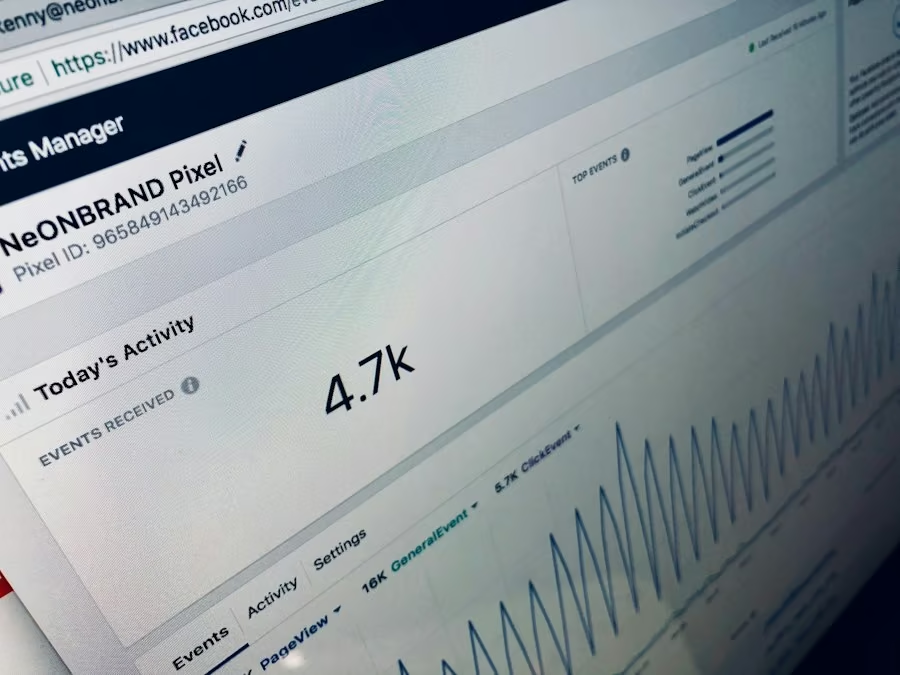
Setting up MainWP isn’t overly complicated, but it does involve a couple of steps. Unlike SaaS solutions, MainWP requires you to host a “MainWP Dashboard” site. This is your central hub.
Choosing Your Dashboard Site
The first thing you’ll need is a WordPress installation to act as your MainWP Dashboard. This site doesn’t need to be public-facing or a high-traffic blog; its sole purpose will be to manage your other WordPress sites.
- Dedicated Hosting: For agencies or those managing a large number of sites, a dedicated hosting environment (VPS or a small dedicated server) for your MainWP Dashboard is a good idea. This ensures resources aren’t stretched thin and performance remains snappy.
- Subdomain or Subdirectory: You can install your Dashboard on a subdomain (e.g.,
manage.yourdomain.com) or in a subdirectory (e.g.,yourdomain.com/manage) of an existing site. Just make sure the server resources are adequate. - Localhost: While possible for testing, running your Dashboard on a localhost environment isn’t practical for managing live websites as it wouldn’t be accessible from the internet.
Once you have your WordPress installation ready, install the “MainWP Dashboard” plugin. This transforms your standard WordPress site into the control center.
Connecting Your Client Sites
After setting up the Dashboard, the next step is to connect your “child” sites (the WordPress installations you want to manage). This involves installing another plugin called “MainWP Child” on each of those sites.
- Install MainWP Child: On each WordPress site you want to manage, go to ‘Plugins’ > ‘Add New’ and search for “MainWP Child”. Install and activate it.
- Add Site to Dashboard: Back on your MainWP Dashboard, navigate to ‘MainWP > Sites > Add New’.
- Enter Site Details: You’ll need the URL of your child site and the admin username and password for that site (MainWP uses these credentials initially to establish the connection securely).
- Confirm Connection: MainWP will then attempt to connect to the child site. Once successful, you’ll see a confirmation message, and the site will appear in your list of managed sites.
Repeat this process for all the WordPress sites you wish to manage. It might seem like a bit of work upfront, but it’s a one-time setup that pays dividends in the long run.
Core Management Features in Action
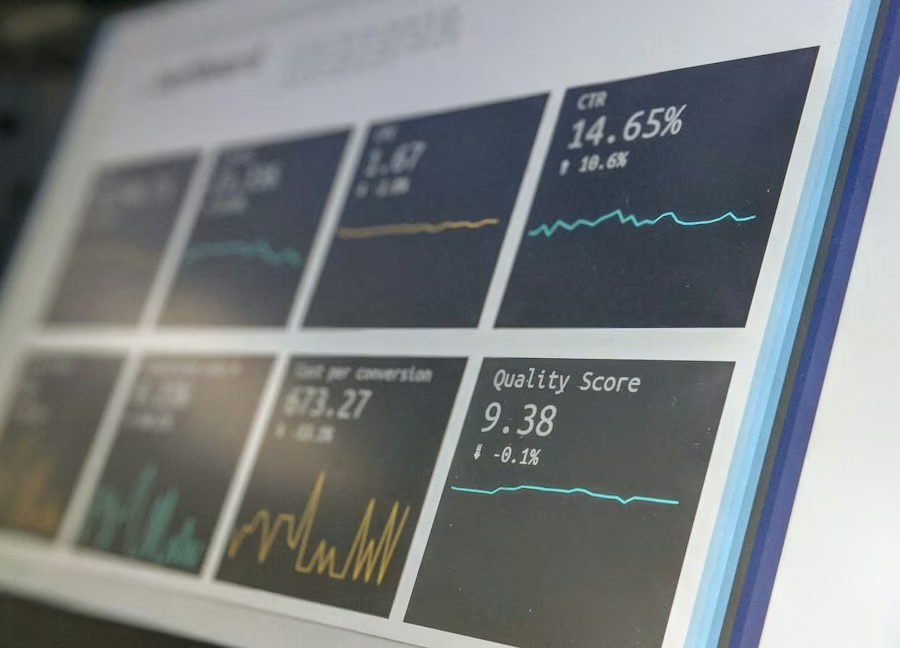
Once your sites are connected, MainWP truly shines. Its core functionalities are designed to automate and centralize the most common WordPress maintenance tasks. This is where you start reclaiming your time.
Updates at Your Fingertips
This is arguably one of MainWP’s most impactful features. Instead of navigating to ‘Dashboard > Updates’ on every single site, you get a consolidated view.
- Centralized Update Page: From your MainWP Dashboard, you’ll see a single page listing all available updates across all your connected sites: WordPress core, themes, and plugins.
- Bulk Updates: Select multiple plugins, themes, or even core updates across various sites and apply them all with a single click. MainWP handles the process in the background, showing you progress and any potential issues.
- Update Ignorance: Sometimes you don’t want to update a specific plugin or theme for a particular reason (e.g., it’s a custom version, or you’re waiting for compatibility confirmation). MainWP allows you to “ignore” updates for selected items, preventing them from showing up as pending.
- Before Update Backups: A crucial feature for safety. MainWP can be configured to automatically create a backup of a site before applying any updates. This way, if an update breaks something, you have an immediate rollback point.
This singular update interface dramatically reduces the time spent on routine maintenance, ensuring your sites are always running the latest, most secure versions.
Comprehensive Backup Management
Backups are the cornerstone of any good website management strategy. MainWP offers robust options to ensure your data is safe and easily recoverable.
- Multiple Backup Solutions: MainWP integrates with several popular backup plugins (e.g., UpdraftPlus, BackWPup, WPvivid, ManageWP’s own backup solution) as well as offering its own basic file and database backup capabilities.
- Scheduled Backups: Set up recurring backup schedules for individual sites or groups of sites. You can choose daily, weekly, monthly, or custom intervals.
- Storage Locations: Backups can be stored in various locations: on your server, a remote server via FTP/SFTP, or popular cloud services like Amazon S3, Google Drive, Dropbox, and more (often requiring premium extensions for specific integrations).
- Restoration: In the unfortunate event of a site crash or data loss, MainWP facilitates the restoration process, allowing you to bring a site back from a previous backup directly from your Dashboard.
- Selective Backups: Choose to backup just the database, just the files, or both. This flexibility is useful for specific scenarios, like moving a site or testing a new feature.
Effective backup management through MainWP means peace of mind, knowing that your clients’ data (and your own) is protected and recoverable.
Security and Monitoring
Keeping an eye on your sites’ security and uptime is non-negotiable. MainWP provides tools to help you stay on top of potential issues.
- Security Scans: Integrates with security scanners (like Sucuri, Wordfence via extensions) to provide an overview of your sites’ security status. You can run scans and review results directly from the Dashboard.
- Uptime Monitoring: Track the uptime of all your connected sites. If a site goes down, MainWP can notify you immediately, allowing for a swift response. This is often integrated via third-party services like Uptime Robot.
- Vulnerability Detection: MainWP can alert you to known vulnerabilities in installed plugins or themes, helping you proactively address potential threats.
- User Management: Review and manage user accounts across all your child sites. You can quickly spot suspicious new accounts or remove old ones that are no longer needed.
- Hardening Options: Apply common WordPress security best practices (e.g., hiding WordPress version, removing RDP headers, preventing directory browsing) across all sites with a few clicks.
By centralizing security and monitoring, MainWP helps you maintain a strong security posture across your entire network of sites without having to individually audit each one.
Extending MainWP’s Capabilities with Extensions
While MainWP’s core features are robust, its true power often comes from its extensive library of extensions. These are akin to plugins for your MainWP Dashboard, adding specialized functionalities that cater to specific needs.
Popular and Practical Extensions
MainWP offers a wide range of extensions, some free, many premium, that tackle various aspects of website management. Here are a few examples of popular and incredibly practical ones:
- Advanced Uptime Monitor: While basic uptime monitoring is available, this extension often integrates with more sophisticated services like Uptime Robot or external monitoring tools, providing detailed reports and instant notifications via email, Slack, or SMS. This is crucial for maintaining client trust and quickly resolving issues.
- Backup (Specific Integrations): Extensions like the “MainWP UpdraftPlus Extension,” “MainWP BackWPup Extension,” or “MainWP WPvivid Extension” allow you to seamlessly manage these popular backup plugins from your central dashboard. This means you can configure, run, and restore backups directly from MainWP, rather than logging into each child site.
- Client Reports: An absolute must-have for agencies or freelancers. This extension allows you to generate professional, customizable reports detailing all the work performed on a client’s site (updates, backups, security scans, uptime, etc.) over a specific period. These reports can be branded with your logo and automatically emailed to clients, showcasing the value of your services.
- Security (Specific Integrations): Extensions like the “MainWP Sucuri Extension” or “MainWP Wordfence Extension” bring the power of these dedicated security services into your MainWP Dashboard. You can initiate scans, review results, and often take action directly from MainWP, streamlining your security workflow.
- Post & Page Builder: For content managers, this extension allows you to create, edit, and publish posts and pages across multiple child sites from your MainWP Dashboard. Imagine drafting a universal announcement and publishing it to all your client blogs simultaneously.
- Broken Links Checker: Automatically scans all your connected sites for broken internal and external links. Identifying and fixing these quickly is important for SEO and user experience.
- WP CLI: For developers and advanced users, the WP CLI extension allows you to run WordPress Command Line Interface commands on your child sites directly from your MainWP Dashboard. This opens up a world of automation and advanced control.
How Extensions Enhance Workflow
Extensions don’t just add features; they fundamentally change how you interact with your sites, making workflows smoother and more automated.
- Automation: Many extensions enable advanced automation. For example, scheduling client reports to be sent monthly, or setting up automatic security scans to run weekly.
- Deep Integrations: Instead of just being a launchpad for a third-party tool, extensions often provide deep integration, meaning you’re managing that tool through MainWP, rather than logging into a separate service.
- Customization: Client reports, for instance, are highly customizable, allowing you to tailor the information and presentation to each client’s needs.
- Specialized Needs: If you have a specific task or service you regularly use (like a particular SEO tool or a code snippet manager), there’s often an extension or an opportunity to build one that integrates it with MainWP.
While some extensions require a premium subscription (usually an annual fee or a lifetime purchase), the value they add in terms of time saved and enhanced capabilities often far outweighs the cost, especially for professionals managing many sites. It’s worth exploring the MainWP Extensions page to see what’s available and how it aligns with your specific workflow.
Practical Tips for Daily Use
| Metric | Description | Value | Unit |
|---|---|---|---|
| Connected Sites | Number of WordPress sites connected to the MainWP Dashboard | 25 | Sites |
| Pending Updates | Total number of plugin, theme, and core updates pending across all connected sites | 48 | Updates |
| Active Plugins | Average number of active plugins per connected site | 12 | Plugins |
| Backup Status | Percentage of sites with recent successful backups | 92 | % |
| Security Issues | Number of security vulnerabilities detected across all sites | 3 | Issues |
| Average Load Time | Average page load time for connected sites | 1.8 | Seconds |
| Last Sync | Time since last synchronization with all connected sites | 15 | Minutes Ago |
Getting MainWP set up is one thing, but integrating it effectively into your daily or weekly routine is where the real magic happens. Here are some practical tips to make the most of your centralized dashboard.
Setting Up Your Dashboard for Success
- Organize Your Sites: Use MainWP’s ‘Groups’ feature to categorize your child sites. You might group them by client, by project type (e.g., e-commerce, blog), or by hosting provider. This makes targeted updates, backups, or reporting much easier.
- Establish a Routine: Don’t just wait for updates to pop up. Schedule a regular time each week (or day, depending on your needs) to log into your MainWP Dashboard. This could be 15 minutes every Monday morning for updates, checking backups, and reviewing security statuses. Consistency is key.
- Leverage Notifications: Configure MainWP to send you email notifications for critical events, such as failed backups, security warnings, or uptime monitoring alerts. Don’t let important information sit unnoticed in the dashboard.
- Consider a Staging Environment: While MainWP is great for production sites, for critical updates or major changes, always consider having a staging environment for your client sites. Run updates on staging first, test thoroughly, then deploy to live via MainWP. Some MainWP extensions can even help manage staging deployments.
- Secure Your Dashboard: Your MainWP Dashboard is the keys to your entire kingdom of WordPress sites. Treat its security with the utmost importance.
- Use a strong, unique password.
- Enable Two-Factor Authentication (2FA) on your Dashboard site.
- Keep your Dashboard site itself updated (WordPress core, themes, plugins).
- Consider IP whitelisting if your Dashboard is hosted on a private server.
Streamlining Routine Tasks
- Smart Updates with “Safe Updates”: MainWP offers a “Safe Updates” feature (often an extension or built-in for core components). This takes a backup before updating and can even revert the update if a problem is detected. While not foolproof, it’s a good layer of protection for bulk updates.
- Batch Operations: Whenever possible, use MainWP’s batch capabilities. Updating 20 plugins across 10 sites can be done in a single action, rather than 200 individual clicks. This applies to backups, security scans, and even managing users or posts.
- Content Management: If you manage multiple blogs for similar content (e.g., local businesses in different towns), use the Post & Page Builder extension to publish articles across all relevant sites simultaneously. This is a massive time-saver for content syndication.
- Comment Moderation: MainWP allows you to view and moderate comments from all your child sites in one place. No more logging into individual sites just to clear spam or approve a legitimate comment.
- User Management Across Sites: Need to add a new editor to five client sites? Or remove an old client’s access from all sites? MainWP’s user management features allow you to do this centrally.
By implementing these practical tips, you won’t just be using MainWP; you’ll be harnessing its full potential to create a highly efficient, secure, and manageable WordPress empire. It moves you from being reactive to proactive, freeing up valuable time for more strategic tasks.